
Introduction
The average knowledge worker loses 1.8 to 2.5 hours every day searching for information—that's nearly 10 hours per week spent hunting for misplaced files, emails, and documents. This translates to an annual productivity loss of $19,732 per employee, according to industry research.
The cost of disorganization extends well beyond wasted time. When 84% of employees make decisions based on assumptions four times every week because they can't find what they need, the fallout is real: delayed decisions, compliance exposure, and productivity losses across the team.
Visible desk clutter is only part of the problem. Chaotic digital folders, missing retention policies, and the absence of a reliable retrieval system create just as much friction—often more.
This guide delivers 10 actionable tips organized into four focus areas: auditing and categorizing your documents, controlling physical desk clutter, building a functional digital system, and staying compliant with retention and security requirements.
Key Takeaways
- Office file clutter costs workers 1.8–2.5 hours daily—fixing it takes a repeatable system, not a one-time tidying session
- Sort documents into four piles first: Action, Reference, Archive, or Toss—never skip this audit step
- Physical clutter needs daily desk-clearing habits and durable tools like mesh organizers to stay controlled
- Digital files demand a consistent folder structure, strict naming conventions, and version control policies
- Record retention schedules and secure shredding are non-negotiable: both carry real legal and operational consequences if ignored
Start With a System, Not a Stack (Tips 1–2)
Tip 1 — Audit Everything First
Before you create any filing system, pull every document out and evaluate it. Skipping this step is the most common mistake people make when trying to organize.
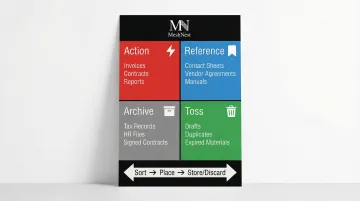
Use the four-pile sorting method:
- Action — invoices to pay, contracts to review, reports awaiting decisions
- Reference — client contact sheets, vendor agreements, procedure manuals
- Archive — tax records, HR files, signed contracts kept for legal or compliance
- Toss — outdated drafts, duplicate copies, expired materials
This sorting process forces you to confront what you actually need versus what you're holding onto out of habit. Once sorted, placement follows naturally:
- Action items move to your desktop or active workspace
- Reference files go into labeled folders within arm's reach
- Archive materials enter long-term storage with clear retention dates
- Everything else gets shredded or recycled
Pro tip: Assign a toss-out date to physical files when you create them—write "Review by Q3 2025" on a sticky note attached to the folder itself.
Tip 2 — Build Broad Categories with Subcategories
The best filing systems use 4–8 broad parent categories with specific subfolders beneath each. More than eight top-level categories creates decision fatigue; fewer than four forces unrelated documents into the same bucket.
Common category structures by department:
| Department | Recommended Approach | Example Categories |
|---|---|---|
| Finance/Accounting | Chronological & Event-Based | FY2024, FY2025, Accounts Receivable, Audit Reports |
| Marketing/Creative | Project & Asset-Based | Client_ProjectName_Date_Version, Brand Assets, Logos |
| Operations | Functional & Process-Based | Vendor Contracts, SOPs, Equipment Records, Safety Compliance |
| HR | Employee & Policy-Based | Personnel Files, Benefits, Policies, Recruiting |
Avoid over-labeling. A folder titled "Procedural Memo on Expense Reports dated 01/20" creates confusion; "Expense Reports 2024" does not.
Build Around How You Search, Not How Files Were Created
Build your category system around how you would naturally search for a file, not how it was created. If you'd ask "Where's the Contoso contract?" then organize by client name. If you'd ask "Where are last quarter's financials?" then organize by date.
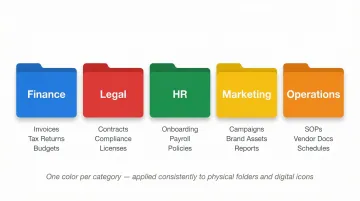
Color-coding accelerates retrieval: Research shows that visual search time increases with display clutter, but color-coding speeds up recognition when background items are dissimilar. Assign one color per broad category—blue for Finance, red for Legal, green for HR—and apply it consistently across both physical folders and digital folder icons.
The table above illustrates this principle in practice — each department's approach maps directly to how that team searches for information, not how documents arrived.
Control Physical Clutter at Your Desk (Tips 3–5)
Tip 3 — Clear Your Desk Daily
If you don't use it every day, it shouldn't live on your desktop. Every paper on the desk should be actively in use.
The daily rule: Clear your desk before leaving each evening. Place only tomorrow's priority items at the center. Everything else goes into a drawer, file cabinet, or designated holding tray.
This habit prevents the slow accumulation of "just in case" documents that turn into six-inch stacks by Friday. It also gives you a psychological reset—walking into a clean workspace each morning signals focus, not chaos.
Tip 4 — Move Paper — Don't Let It Pile
That daily clear-desk habit only works if paper has somewhere to go. Set up an in-basket and out-basket, and process paper at least 2–3 times per week. Every piece gets one of four actions:
- Respond, sign, approve, or complete the task
- Move to a labeled folder in your reference system
- Pass to the responsible person via the out-basket
- Shred or recycle
A time-management study found that executives lose over two hours per day just looking for things. Most of that time is spent searching through unprocessed paper piles.
If paper sits for more than three days, it becomes "invisible" clutter—your brain stops registering it as actionable and starts treating it as background noise.
Tip 5 — Use the Right Physical Organizers
Desktop organizers give every document category a fixed home. Choose tools based on how you actually work, not how an ideal desk looks.
Action Files vs. Reference Files:
- Action Files — Frequently accessed, kept on the desk surface (today's invoices, pending approvals, active project files)
- Reference Files — Less frequently needed, stored in a drawer or cabinet (vendor contact lists, procedure manuals, archived reports)
Keep only action files on your desktop. Reference files belong within reach but off the surface.
Recommended physical organizers:
- Letter trays for horizontal in/out baskets and daily processing
- Vertical file sorters for upright storage of active project folders
- Multi-tier paper sorters with separate compartments for invoices, reports, and correspondence
- Desktop mesh holders that keep files visible and accessible without taking up drawer space
Metal mesh options — 2-tier and 3-tier file trays in particular — hold up well under daily use. Powder-coated steel mesh resists bending and rust, and the open design lets you see folder contents without pulling everything out.
Build a Smart Digital Filing System (Tips 6–8)
Tip 6 — Choose a Folder Structure That Fits Your Workflow
There are four common digital folder organization strategies. Most teams use a hybrid approach.
Four primary methods:
| Method | Best For | Pros | Cons |
|---|---|---|---|
| By Name (client/project) | Client-facing teams, agencies | Easy to find all materials for one client | Hard to compare projects across clients |
| By Date (year/quarter) | Accounting, compliance, archival | Automatic chronological sorting | Difficult to find specific projects quickly |
| By Department | Large organizations, cross-functional teams | Clear ownership and access control | Siloed information, duplication across departments |
| By Project | Project-based work, product development | All project materials in one place | Doesn't scale well with many simultaneous projects |
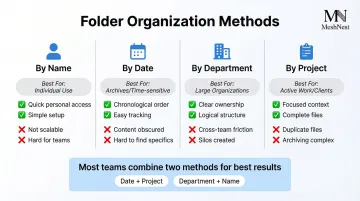
Combining two methods balances access speed and scalability. Two structures that consistently work: Department > Year > Project (HR > 2024 > Benefits Enrollment) or Client > Project Type > Date (Contoso > Social Ads > 2024-Q3).
Avoid deep nesting: Microsoft recommends avoiding folder structures with more than two levels of nesting. Deep hierarchies slow down search and create decision fatigue.
Tip 7 — Establish a Consistent File Naming Convention
Vague file names like "draft1.doc" or "final_THISONE.doc" create chaos. When multiple people save versions across email threads, you end up with a dozen files and no clear record of which is current.
Recommended naming format: Start with the broadest category and move to the specific.
Example: 2024-Q3_ContosoBrief_SocialAds_v2.doc
Naming convention rules:
- Use underscores and hyphens instead of spaces for URL and cross-platform compatibility
- Start with date in ISO format (YYYYMMDD or YYYY-MM-DD) to ensure chronological sorting
- Include project or client name for context
- Add version suffix if needed (v1, v2, draft, final)
- Keep file paths under 255 characters per NARA guidelines
Bad examples:
new_doc.docxFINAL_version_USE_THIS.pdfContract 2.doc
Good examples:
2024-03-15_Contoso_ServiceAgreement_v3.pdf2024-Q2_FinancialReport_Draft.xlsxFY2024_HR_BenefitsEnrollment_Final.docx
Tip 8 — Set Up Version Control
Multiple file versions circulating across email threads — with no single source of truth — are the core cause of document chaos. Saving files to a shared cloud drive solves this: all team members work from one live file, and platforms like Microsoft SharePoint, Google Drive, and Dropbox automatically track version history with point-in-time rollback.
If versioning is needed, establish a naming suffix protocol:
draft— Initial version for internal reviewclientedits— Incorporates client feedbackrevision1— First round of revisionsfinal— Approved and locked
Caution: Never label a file "final" until it truly is. Once a file is marked final, create a new document for any subsequent changes (e.g., 2024-Q3_Report_Final_Amended.pdf).
Schedule a recurring file audit — monthly or quarterly — to delete duplicates, archive completed projects, and clear stale files from active folders. Left unchecked, shared drives accumulate clutter just as fast as physical desks.
That said, AI-powered search does reduce the cost of imperfect naming. Microsoft 365 Copilot Search and Google Drive's Gemini can locate files using natural language queries and content analysis — even when the exact file name escapes you. Treat it as a safety net, not a replacement for consistent naming.
Stay Compliant: Retention, Shredding, and Security (Tips 9–10)
Tip 9 — Follow a Record Retention Schedule
Businesses are legally required to retain certain records for specified periods. Failing to do so creates legal exposure, especially during audits or litigation.
US federal retention requirements (non-US businesses should verify local jurisdiction rules):
| Record Type | Retention Period | Governing Body |
|---|---|---|
| General Tax Records | 3 years from filing; 6 years if unreported income >25% | IRS |
| Employment Tax | 4 years after tax due date or payment | IRS |
| Payroll Records | 3 years (payroll, sales); 2 years (wage computations) | DOL (FLSA) |
| FMLA Records | 3 years minimum | DOL |
| Form I-9 | 3 years after hire, or 1 year after employment ends | USCIS |
| Personnel Records | 1 year from date of record or personnel action | EEOC |
| Federal Contracts | 3 years after final payment | FAR |
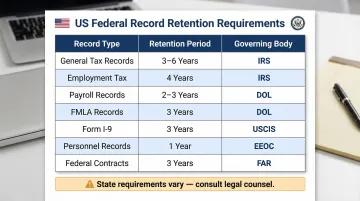
State requirements vary: Retention schedules must account for federal and state-specific requirements. Consult a CPA or attorney to ensure compliance.
Litigation hold: If you anticipate a lawsuit, pause all document destruction immediately. The Sedona Conference defines a legal hold as the duty to "undertake reasonable actions to preserve paper documents, electronically stored information (ESI), and tangible items that are relevant to the parties' claims and defenses."
Tip 10 — Shred and Secure Sensitive Documents Properly
The FTC requires businesses to responsibly destroy records containing personally identifiable information (PII)—such as Social Security numbers, credit histories, and financial account details.
FTC Disposal Rule (FACTA): Any person who maintains consumer information for a business purpose must take "reasonable measures to protect against unauthorized access" during disposal. Acceptable methods include burning, pulverizing, or shredding physical papers, and destroying or erasing electronic media so information cannot be reconstructed.
Penalties for non-compliance are substantial — as two enforcement cases show:
- PLS Financial Services (2012): Paid a $101,500 civil penalty for dumping intact consumer documents in publicly accessible dumpsters
- American United Mortgage (2007): Paid a $50,000 civil penalty for leaving loan documents in an unsecured dumpster
Secure digital file deletion: Simply deleting a file doesn't erase it. NIST SP 800-88 Rev. 2 recommends three sanitization methods:
- Clear — Overwrites data using logical techniques (suitable for reuse within the same organization)
- Purge — Makes data recovery practically impossible using advanced lab techniques (e.g., block erase)
- Destroy — Physically destroys the media (pulverize, melt, incinerate)
- Cryptographic Erase — Sanitizes the encryption key, making decrypted data unrecoverable (executes in seconds)
Access control for digital documents: Set file-level permissions on digital documents to control access by role or user. Not everyone needs access to HR files, financial records, or legal contracts.
Simple policy: Treat every document as a legal record. When staff assume anything could be subpoenaed or audited, the decisions about what to print, store, and discard tend to take care of themselves.
Frequently Asked Questions
What are the main types of file organization?
The four primary methods are by name (client or project), by date (year or quarter), by department, and by project. Most offices use a hybrid of two or more based on workflow and team size.
What is the best way to organize a large number of files?
Start with a broad category sort, archive older files by year or quarter, and use bulk renaming tools for digital files. Cloud-based search features also reduce the need for perfect folder hierarchies.
What criteria should I use to choose a file organization system?
Focus on retrieval speed—how quickly can someone find a file? Consider team size, tech comfort level, whether files are physical or digital, and how often categories change over time.
What are the different types of file organizers?
Physical organizers include hanging file folders, binders, desktop letter trays, vertical sorters, and metal mesh paper holders. Digital organizers include shared drives, document management systems, and cloud storage. For bulk sourcing of metal mesh file organizers, reach MeshNest on WhatsApp at +91 98370 74236 to discuss pricing and order quantities.
What do you call someone who organizes documents?
Professional document organizers are typically called Records Managers, Document Controllers, or Certified Professional Organizers (CPOs), depending on their industry and focus area.