
Introduction
Random screenshots, unnamed downloads, and duplicate documents don't just clutter your desktop — they cost you time. 47% of digital workers struggle to find the information they need to do their jobs effectively, according to a 2023 Gartner survey of nearly 5,000 employees.
Every time you sit down to work, visual clutter competes for your attention, forcing your brain to filter through irrelevant files before you even open a document.
Desktop organization works best when you build a repeatable system, not just do a one-time sweep. This article covers 11 practical strategies spanning folder structure, naming conventions, decluttering, and built-in tools that work on both Windows and Mac.
Key Takeaways
- A clean desktop requires a deliberate folder structure, not random dragging
- Naming conventions eliminate the "final_v2_REALLYFINAL" problem permanently
- Regular deletion and archiving keep the system from collapsing after setup
- Mac Stacks and Windows sort tools handle sorting and cleanup automatically
- Weekly 10-minute sweeps beat annual overhauls every time
Ideas 1–4: Build Your Folder Structure First
Folder structure is the foundation. Without a logical hierarchy, everything else — naming, sorting, archiving — breaks down. The best system is one that matches how you actually think about your work, built around your habits rather than borrowed from someone else's setup.
Idea 1: Choose an Organizing Principle
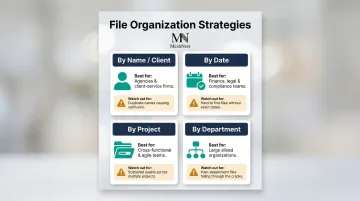
Microsoft explicitly recommends four main approaches for organizing digital files: by name/client, by date, by project, or by department. Each works best in specific contexts, and mixing them without a clear plan tends to make retrieval harder, not easier.
When to use each strategy:
- By Name/Client — Best for agencies or consultancies managing multiple client accounts. Names are less ambiguous than industry types, but this approach fails when clients rebrand or when you need to recall project dates
- By Date — Ideal for finance, legal, or compliance teams handling time-sensitive files. Makes quarterly reviews simple but harder to find projects by type or client
- By Project — Works well for cross-functional teams collaborating on specific initiatives. Everything lives in one place, but related projects remain siloed unless you layer in secondary naming conventions
- By Department — Suits organizations where teams work independently. Each group knows where their files live, but collaboration across departments becomes messy
Hybrid approaches reduce ambiguity. For example, organize by Project at the top level, then use Date as a secondary layer within each project folder. Document your chosen system and share it with your team so everyone follows the same logic.
Idea 2: Create a Top-Level Hierarchy with Broad Folders
Start with broad parent folders that reflect your primary organizing principle. If you chose date-based organization, create folders for 2024, 2025, and 2026. If you chose project-based, create folders for each major initiative or client.
Add a "Working Files" or "_INBOX" folder to capture files you're actively using but haven't yet sorted. Rather than relying on the underscore trick, use your OS's native sorting controls:
- macOS: Enable "Keep folders on top" in Finder > Settings > Advanced
- Windows/Mac: Use numeric prefixes like 01_INBOX to force priority ordering
This temporary holding area prevents new files from cluttering your desktop while you decide where they belong permanently.
Idea 3: Use Subfolders Strategically — Not Excessively
Subfolders should add clarity without creating complexity. Research published in the Journal of the American Society for Information Science and Technology analyzed 5,035 navigation steps and found that shallow folder structures (mean depth of 2.86 levels) with small folders (mean of 11.82 files each) achieved 94% retrieval success in under 15 seconds.
Limit nesting to 2–3 levels deep. Going deeper forces users to click through multiple layers, slowing retrieval and increasing frustration.
Example hierarchy:
2025 > Marketing > Social Ads
2025 > Marketing > Email Campaigns
2025 > Sales > Q1 Proposals
Each subfolder should serve a clear purpose. If you're creating a subfolder just to hold two files, those files probably belong in the parent folder instead.
Idea 4: Create a Dedicated Archive Folder
Old files clutter active folders, but deleting them feels risky when you're unsure whether you'll need them later. A clearly labeled Archive or 2020-OLDER folder solves this problem.
How to use it:
- Move files older than two years into the archive folder
- Organize archived files loosely by year or project if needed
- Keep the archive out of your active workspace but accessible if needed
This approach prevents old files from competing for attention without forcing an immediate deletion decision. When you need something from 2019, you know exactly where to look.
Ideas 5–7: Name, Sort, and Track Your Files Properly
Even a perfect folder structure fails when files have vague names like "draft1.docx" or "screenshot_003.png." Good naming conventions ensure files are searchable and recognizable at a glance, whether you're browsing folders or using your OS search function.
Idea 5: Establish a Consistent File Naming Convention
Authoritative bodies including the U.S. National Archives, The National Archives (UK), and Harvard Library all recommend similar naming rules:
Follow this structure for every file name:
- Start with the broadest category (date or project)
- Add specific identifiers (client name, document type)
- Use only letters, numbers, underscores, and hyphens
- Avoid spaces and special characters
- Use ISO 8601 date format: YYYYMMDD or YYYY-MM-DD
Example:
2025-06-10_ClientName_SocialAds_Draft.docx
ProjectAlpha_Budget_2025Q2.xlsx
Underscores and hyphens matter beyond aesthetics. RFC 3986 classifies them as "unreserved" URL characters — meaning they stay readable when shared via web links without any percent-encoding conversion.
Idea 6: Use Built-In Sort and Arrange Tools
Both Windows and Mac offer native sorting tools, but they behave differently. Understanding the distinction prevents frustration when files don't stay where you expect them.
macOS Finder:
- Sort By (View > Sort By) — Creates persistent, automatic ordering by Name, Date Modified, Size, or Tags. Files stay sorted even after you add new ones
- Clean Up By — Available only in Icon view. Aligns and sorts icons once, but allows manual rearrangement afterward
Windows File Explorer:
- Use Details view and click column headers (Name, Date Modified, Type, Size) to sort
- Sorting is persistent within each folder view
- Add custom columns by right-clicking the header row
On Windows, default to Details view for consistent sorting. On macOS, choose "Sort By" for stable layouts and reserve "Clean Up By" for one-off tidying in Icon view.
Idea 7: Use Version Suffixes for Working Documents
Version naming breaks down the moment one person saves "final_FINAL_reallyfinal.docx." Princeton University Records Management recommends a simple suffix system that keeps everyone on the same page:
Use these suffixes in order:
_draft— Initial working version_clientedits— Version returned with client feedback_revision1,_revision2— Sequential revisions_final— Approved, locked version (saved as PDF when possible)
Example progression:
Proposal_draft.docx
Proposal_clientedits.docx
Proposal_revision1.docx
Proposal_final.pdf

Reserve _final for truly locked documents. If edits come in after the fact, move to _revision2 — don't create a "final_v2."
Cloud alternative: A single shared file in Google Docs or Microsoft 365 with tracked changes enabled eliminates version proliferation entirely, provided all collaborators work in the same platform.
Ideas 8–9: Delete, Archive, and Maintain Consistently
Organizing files once without a maintenance plan just delays clutter — it doesn't prevent it. Consistent, lightweight maintenance beats annual overhauls every time.
Idea 8: Do a Ruthless Purge Before You Organize
Before building your folder structure, delete the obvious waste:
- Duplicate files — Use your OS search to find files with identical names
- Outdated screenshots — If you haven't referenced it in two months, you won't
- Superseded drafts — Keep only the final version unless you need revision history
- Unused downloads — Clear your Downloads folder of installers and one-time files
When you're uncertain, archive instead of delete. Move questionable files to your Archive folder — this clears active space without the risk of losing something you might need later.
Idea 9: Schedule Regular Desktop Sweep Sessions
Once the initial purge is done, the goal is keeping it that way. Set a recurring calendar reminder for a 10–15 minute desktop sweep every week or two. During each session:
- Move active files into their proper folders
- Delete screenshots and temporary files
- Archive completed project files
- Empty your Downloads folder
One small setting change makes a real difference: redirect your browser's download destination away from the desktop. On Chrome, Firefox, and Edge, you can specify a default download location in Settings — so new files land in a dedicated Downloads folder from the start.
Fifteen minutes every two weeks keeps the backlog from forming in the first place — which is far easier than recovering from six months of drift.
Ideas 10–11: Use Desktop Tools and Visual Cues to Stay Organized
Both Windows and Mac have underutilized native features that automate desktop organization with minimal manual effort. Third-party tools extend these capabilities even further.
Idea 10: Use Mac Stacks or Windows Fences to Auto-Group Files
If you accumulate working files on your desktop, automatic grouping tools reduce visual clutter without requiring a full folder overhaul.
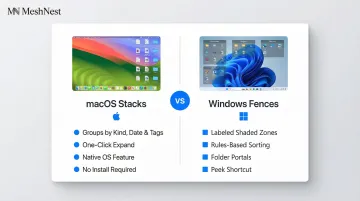
macOS Stacks (macOS 10.14 Mojave and later):
- Right-click desktop > Use Stacks
- Files automatically group by Kind, Date Last Opened, Date Modified, Date Created, or Tags
- Click a stack to expand and view contents
- Disable anytime by right-clicking and deselecting Use Stacks
Stardock Fences for Windows:
- Third-party tool that creates labeled, shaded desktop zones
- Drag files into designated "fences" by type or project
- Features include rules-based sorting, Folder Portals, and "Peek" (Winkey + Space to hide all fences temporarily)
- Available at stardock.com/products/fences
Both tools reduce visual noise without forcing you to move files into folders immediately — a practical middle ground before committing to a full folder structure.
Idea 11: Move App Shortcuts Off the Desktop — and Use Your Wallpaper as a Signal
Desktop shortcuts for frequently used apps create clutter without adding value. Pin them to your taskbar (Windows) or dock (Mac) instead — one click away, off your workspace.
Use your wallpaper as a cleanup cue. Choose a wallpaper you enjoy looking at. When the wallpaper disappears behind icon clutter, that's your signal it's time to clean up. No reminders needed — the clutter tells you.
Take Your Workspace Further: Organize the Desk Beneath the Screen
A clean digital desktop is only half the workspace equation. Research published in the Journal of Neuroscience demonstrates that multiple visual stimuli compete for neural representation, requiring active attention to filter out distractions. Physical clutter increases cognitive load the same way digital clutter does — it forces your brain to work harder to maintain focus.
MeshNest's metal mesh desk organizers bring the same structured, categorized approach to your physical workspace. Just as a well-organized folder system ensures every digital file has a designated place, MeshNest products keep documents, stationery, cables, and accessories sorted and accessible on your desk.
Built by BKP Metal Concepts in Moradabad, India, MeshNest controls the full production process — from raw wire to powder-coated final assembly. That vertical integration translates directly into consistent quality and competitive factory-direct pricing for bulk buyers.
Key credentials at a glance:
- Certifications: ISO 9001:2015, SMETA, and Sedex
- Export reach: United States, Europe, and the Middle East
- Annual exports: Over USD 5 million
- Customization: OEM/ODM options available for retailers, wholesalers, and brand owners
Request samples or discuss bulk pricing at themeshnest.com or reach the team directly at hello@themeshnest.com.
Frequently Asked Questions
Frequently Asked Questions
Should I store files directly on my desktop?
The desktop is fine for active, frequently accessed files but shouldn't serve as permanent storage. Most files belong in a structured folder system, with the desktop reserved for current working items only.
What is the best folder structure for organizing desktop files?
The best structure depends on your workflow. Organizing by date works well for time-heavy work, by project for cross-functional teams, and by department for siloed organizations — combining approaches works too.
How do I quickly organize a messy desktop?
Sort all files by date first, bulk-move them into year-based folders, and place anything unsorted into a temporary "_INBOX" folder to deal with later.
How often should I clean up my desktop files?
A brief weekly sweep (10–15 minutes) is more effective than an annual overhaul. Setting a recurring calendar reminder makes this a habit rather than a chore.
What is the difference between sorting and organizing desktop files?
Sorting is a temporary arrangement by name, date, or size. Organizing involves creating a permanent folder structure and naming system.
How do I organize files on both Windows and Mac?
Both systems offer native sorting and folder tools. Windows uses File Explorer's "Sort By" and third-party Fences, while Mac offers "Sort By," "Clean Up By," and the Stacks feature. The folder hierarchy and naming principles apply equally to both. For the physical side of your workspace, MeshNest's metal mesh desk organizers complement a tidy digital setup — reach the team on WhatsApp at +91 98370 74236 to discuss bulk orders.